The short answer
Keep world material in folders outside the Draft or Manuscript folder, so it stays out of the word count and the compiled book, and start from the Characters, Places and Research folders of a fiction template. Turn recurring record types into your own document templates, tag scenes with keywords for characters and places, save searches as collections, and link scenes to sketches with document links, which by default leave a back-link bookmark on the target. Scrivener only connects what you link or tag, its custom date fields hold real calendar dates, and a project should never be open for editing in two places at once.
Scrivener already holds your chapters, so keeping the world in the same project means one window, one backup and no switching apps mid-scene. The risk is a binder where lore drifts into the manuscript folder and every important fact sits in one long document you can’t link to.
Literature & Latte presents Scrivener as one place for your notes, research and writing (overview). This guide sets up a world inside a Scrivener 3 project using features it documents for macOS and Windows. It follows an invented fantasy, The Singing Seam, set in the mining town of Hollowmere: the assayer Ysolde Brand, her brother Corin, Warden Hask, and a mine level called the Deep Gallery where, miners say, the silver sings before a collapse.
Keep the world outside the manuscript folder#
Every project has three root folders: Draft (called Manuscript in some templates), Research and Trash. Fiction templates add folders such as Characters, Places and Notes (Research folder). Put world material in folders beside the Draft, never inside it. Folders outside the top-level Draft or Manuscript folder don’t count toward the project word count and aren’t compiled (worldbuilding).
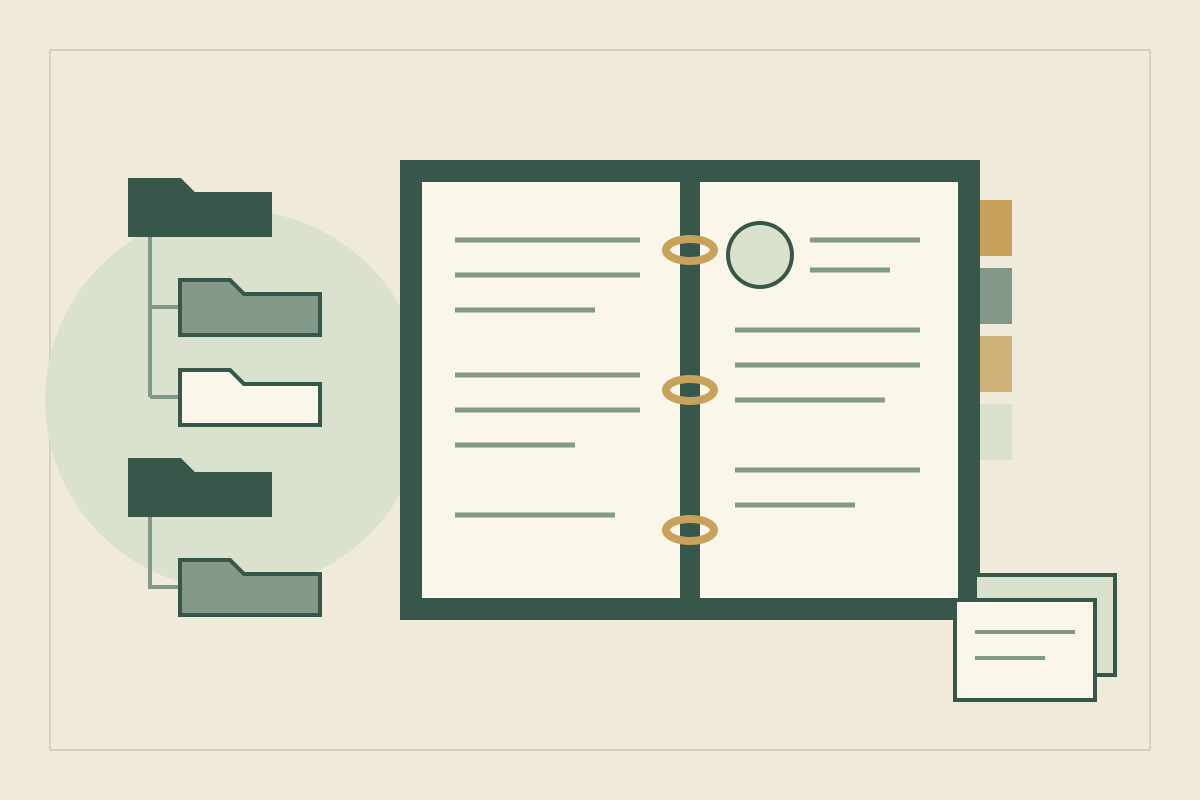
The same article suggests subfolders inside Characters for families, factions or regions, and the same kind of grouping inside Places. Hollowmere’s binder looks like this, with World as a folder you add yourself:
Manuscript
Characters
  The Brand family
  The Wardens
Places
  Hollowmere
  Under the mountain
World
  Lore
  Glossary
  Chronology
Research
Template Sheets
Trash
Start from the sketches, then make your own templates#
In a fiction template, select the Characters folder and press Return to add a Character Sketch, or choose Character Sketch from the toolbar’s Add button. Setting Sketches work the same way in Places (characters, places). Their headings are suggestions: a setting sketch offers headers such as Role in Story, Season, Sights, Sounds and Smell, and you can type over any of them. Drag a picture onto the synopsis area of the Inspector and the folder’s corkboard shows it on that card (characters). Only fiction templates include Character Sketches, so a project started from another template needs its own sheet.
Hollowmere needs records the two sketches don’t cover: lore, factions, glossary terms. Make a document template for each. Create a folder outside the Draft, then choose Project > Project Settings > Special Folders and set it as the templates folder; a project can have only one (document templates, Windows manual). Its documents then appear under Project > New from Template and in the Add button’s menu. The lore template has four headings:
Lore: [name]
What is true:
What people believe:
Who knows, and since when:
First on the page:
The silver-song entry records that the sound is real and comes from settling timbers, that miners treat it as an omen, that only Ysolde has measured it, and that it first appears in chapter 6. Keeping truth and belief apart in the template is what later lets you reveal lore without info-dumps.
Store research beside the draft#
The Research folder accepts text files, PDFs, images, audio, video and web pages, and any other file even if Scrivener can’t display it. You can rename the folder but not delete it. File > Import > Web Page stores a snapshot you can read offline (Research folder).
Large imports make the project bigger. Importing research as aliases (macOS) or shortcuts (Windows) keeps the files outside it, but they won’t open if you move the project to another computer. To write with a reference in view, split the editor and open the research in the other half (Research folder).
Hollowmere’s hand-drawn map of the town and mine levels lives in Research, open in a split while you draft the chase in chapter 14. If you haven’t drawn yours, start from a difficult journey.
Tag scenes with keywords, then save collections#
Keywords tag documents with characters, places or anything else you want to find later. Choose Project > Show Project Keywords, add keywords with the + button and drag one onto any document. You can nest keywords under a parent such as Characters, and renaming a keyword keeps it on every document already tagged (keywords).
Collections turn searches into lists you can return to. A standard collection is a list of documents you pick; a saved search collection keeps a project search and refreshes each time you open it (collections). For structured facts, custom metadata adds Inspector fields and outliner columns in four types: text, checkbox, list and date, set up in Project > Project Settings (macOS manual).
| Question while drafting | Scrivener tool | Hollowmere example |
|---|---|---|
| Which scenes is Ysolde in? | A keyword per character | “Ysolde” |
| What happens in the Deep Gallery? | A saved search collection | “Deep Gallery scenes” |
| Whose viewpoint is this scene? | A label shown in the binder | Ysolde or Corin |
| When is this scene in the world’s calendar? | A text or list custom metadata field | “Seventh Thaw” |
| What did I decide about the silver song? | A document from your lore template | “Silver song” |
Labels can be renamed or added with your own colors to mark viewpoint or setting (worldbuilding).
Link scenes to sketches and read the back-links#
Select a name in a scene, right-click and choose Link to Document, then pick the sketch; New Link creates the document if it doesn’t exist yet. To link while typing, turn on Automatically detect [[document links]] on the Corrections tab of Settings (macOS) or Options (Windows); a title typed between double brackets then links to that document or offers to create it. Links also work in a document’s Notes pane in the Inspector, which keeps cross-references out of the prose (links).
By default, a link adds a bookmark to the target pointing back at the document you linked from, so a sketch’s bookmarks in the Inspector list the scenes that link to it. The option sits under Behaviors, Document Links in the settings. Even without a link, right-clicking a selected phrase that matches a document’s title offers to open that document (macOS manual). The Fiction template also adds project bookmarks for the Characters, Places and Notes folders (bookmarks).
Follow one rename through the project#
In revision, the Deep Gallery becomes the Sunken Gallery. Work through it in this order:
- Rename the setting sketch. Links store the document they point to, not only their visible text, so they still reach it (links).
- Read its back-links. The sketch’s bookmarks show which scenes and lore documents linked to it; reread those first.
- Refresh link text in your notes. Select linked passages and use Edit > Text Tidying > Update Document Links to Use Target Titles, which rewrites each link’s text to the current title and removes links whose target is gone (macOS manual). In the manuscript, check each link by hand: “the old gallery” may be right as written.
- Rename the keyword. Double-click it in the Project Keywords panel; tagged documents keep it (keywords).
- Search for the old name. Project Search finds mentions that no link or keyword recorded. Then replace the saved search collection, which still runs its original search (collections).
What Scrivener does not do for a world#
Scrivener organizes documents; it doesn’t keep track of a world on its own. These limits matter most:
- It connects only what you connect. Back-links come from links and bookmarks you create, and keywords and collections reflect what you tagged or searched for. A mention you never linked turns up only in a search.
- Dates are real dates. Custom metadata date fields store real dates and times (macOS manual). An invented calendar such as Hollowmere’s Thaws belongs in a text or list field, and the chronology itself is yours to check; the timeline guide suggests a method.
- One person, one open copy. The manual says a project should never be open more than once at the same time, and never opened for editing while someone else is editing it. Its Import Project feature allows only a limited form of collaboration, by merging a collaborator’s copy back in (macOS manual).
- Aliased research stays behind. Files imported as aliases or shortcuts don’t travel with the project (Research folder).
Strengths
- World notes, research and manuscript in one project
- Templates, keywords and collections shaped to the book
- Document links that leave back-link bookmarks
Tradeoffs
- Connections exist only where you link or tag
- Custom date fields hold real dates, not an invented calendar
- Not built for two people editing one project at once
Set it up for a standalone or a series#
For a standalone, everything lives in the novel’s project. A series raises one question: how does the world cross from one book’s project to the next? Literature & Latte describes three routes (macOS manual, project templates).
| Approach | How | Watch for |
|---|---|---|
| Copy forward into each book | Drag documents between open projects, or use Documents > Copy to Project; keywords, labels and other metadata come along | Each book holds its own copy, so a later change doesn’t travel back |
| A separate series reference project | Edit > Copy Special > Copy Document as External Link, then paste into a bookmark list or the text | These links open the other project on your computer, so keep it where Scrivener can find it |
| A saved project template | File > Save as Template once the folders, document templates and bookmarks are set up | A template carries structure, not the facts from the previous book |
In our judgment, a reference project stays accurate longer across a trilogy, because each fact keeps one home; copying forward is simpler for a duology. Either way, the habits in keeping a series bible, such as citing where each fact appears, matter more than the route.
Common mistakes in a Scrivener world#
| Mistake | Fix |
|---|---|
| World notes inside the Draft folder | Move them to folders beside it, out of the word count and compile |
| One long “World” document | One document per person, place or rule, so links and keywords can point at it |
| A keyword for every noun | Keywords for the characters, places and threads you search for |
| Real dates for an invented calendar | A text or list custom metadata field |
| Every reference file imported in full | Aliases or shortcuts for large files, knowing they stay on one computer |
| The project open on two computers | Close it on one before opening it on the other |
If you want notes that live outside your writing app, compare this setup with a small Obsidian notebook or the wider shortlist of worldbuilding tools.
Sources
- Literature & Latte: Scrivener overview · October 11, 2026
- Literature & Latte blog: How to use Scrivener for worldbuilding · October 11, 2026
- Literature & Latte blog: Use Scrivener’s Research folder to store information about your project · October 11, 2026
- Literature & Latte blog: How to manage your characters in Scrivener · October 11, 2026
- Literature & Latte blog: How to manage places and setting sketches in Scrivener · October 11, 2026
- Literature & Latte blog: How to create and use custom document templates in Scrivener · October 11, 2026
- Literature & Latte blog: Use keywords to manage your Scrivener projects · October 11, 2026
- Literature & Latte blog: How to use Scrivener’s collections · October 11, 2026
- Literature & Latte blog: How to use internal links in Scrivener projects · October 11, 2026
- Literature & Latte blog: Use bookmarks in Scrivener projects · October 11, 2026
- Literature & Latte blog: Create custom templates for your Scrivener projects · October 11, 2026
- Literature & Latte: Scrivener 3 user manual for macOS (PDF, March 2026 revision) · October 11, 2026
- Literature & Latte: Scrivener 3 user manual for Windows (PDF, March 2026 revision) · October 11, 2026