The short answer
Choose Obsidian if you want your world as linked Markdown files in a local folder, adding structure later through properties and Bases, and you are prepared to run your own backups. Choose Notion if you think in records and fields, want two-way relations, rollups and per-person sharing permissions, and can accept a cloud workspace where offline use is limited to pages you download in its desktop or mobile apps. Neither suits every writer. Run the same small world through both and test exporting and sharing before you move a large project.
You have a navigator, a lighthouse keeper, a harbor and a faction with a secret, and they have outgrown a single document. If you are weighing Obsidian against Notion, notice that they start from opposite ends: one from linked text files on your own disk, the other from databases in an online workspace. Choose by reputation and you may find the mismatch fifty entries in.
This comparison draws on each vendor’s documentation as checked on 11 October 2026; it is not a hands-on test. Statements about fit are our editorial judgments.
Start from the shape of your notes#
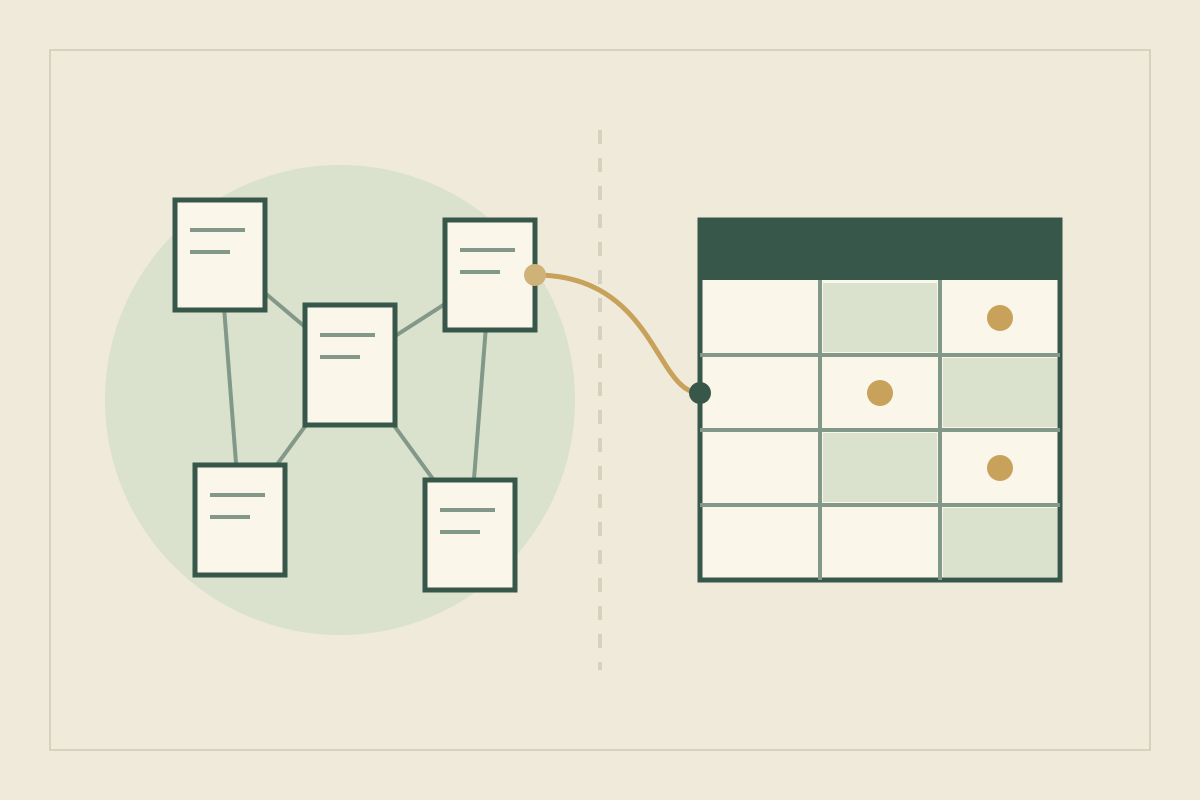
Obsidian stores notes as Markdown plain-text files in a vault, which is a folder on your own file system, and other editors can open and change those files (How Obsidian stores data). Notion describes databases as collections of pages: every item is a page you can write in, labeled by properties and shown through views such as a table, list or calendar (Intro to databases).
In practice, the lighthouse keeper in Obsidian is a text file that links to other files. In Notion he is an item in a Characters database whose fields point at items in other databases. A useful first question: do you mostly write prose about your world, or look things up in it by field?
Set up the same small world in both#
The test world is Cinder Harbor, an island port whose lighthouse went dark for one winter. It has five entries: Josca Fenn, a navigator; Brannoc Tull, the lighthouse keeper; the Lamp Compact, the guild that tends the light; Cinder Harbor itself; and the Dark Winter. One secret ties them together: Brannoc let the lamp go out on the Compact’s orders.
In Obsidian, create five notes and link them as you write. Structure can wait. When you want fields, add properties: they sit as YAML at the top of a note, in types including Text, List, Number, Checkbox and Date, and a link inside a property must be wrapped in quotes (Properties).
---
type: character
faction: "[[Lamp Compact]]"
home: "[[Cinder Harbor]]"
canon: settled
---
Keeper of the Cinder Harbor light. Let the lamp go dark
in the [[Dark Winter]] on the Compact’s orders.
In Notion, create Characters, Places, Factions and Events databases, then decide their properties and relations before entering much. A relation is one-way unless you turn on “Show on [database name]” when creating it (Relations & rollups).
That difference is most of the learning curve, in our judgment. Obsidian lets you postpone structural decisions until you know what you need; Notion asks for them first and rewards you if you already know which fields matter. At five entries neither is hard. The question is when you want to make those decisions.
Link entries and find every mention#
Obsidian. Type [[ to link a note. Rename a file and Obsidian can update internal links to it automatically (Internal links). The Backlinks plugin lists linked mentions, from notes that link to the active note, and unlinked mentions, where its name appears as plain text (Backlinks). Ask “where does the Dark Winter come up?” and a scene note that names it without linking still appears.
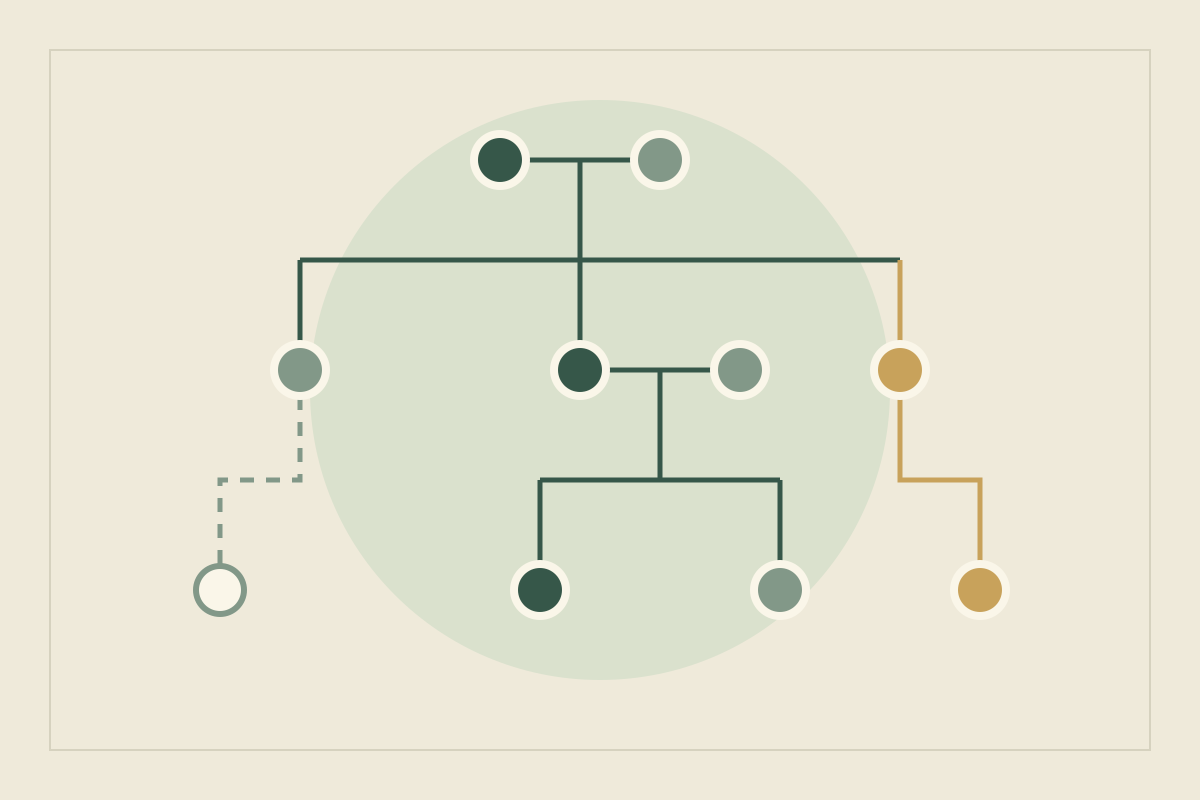
Notion. Type @, [[ or + to mention a page. Backlinks are created automatically each time you @-mention a page, and you see backlinks only for pages you have access to (Links & backlinks). A two-way relation shows Brannoc under the Lamp Compact and the Compact on Brannoc’s page.
Our reading: Obsidian is better at catching loose mentions in prose, and Notion’s relations show structured connections from both sides. Notion’s help describes backlinks only from @-mentions, so a plain-text mention will need a search.
Compare structure: Bases and properties, or relations and rollups#
Notion builds structure into the database. Relations can be two-way, limited to one page, or point back into the same database, and rollups calculate across them: show unique values, count, or for numbers sum, min and max (Relations & rollups). A linked view can filter a database on another page without changing the original’s views (Data sources & linked databases). Asking “how many named members does the Lamp Compact have?” takes one Count all rollup.
Obsidian adds structure through the Bases core plugin, which shows notes and their properties as database-like views you can sort, filter and edit. The data stays in your Markdown files (Introduction to Bases). Layouts include table, cards, list and Kanban (Bases views), and a filter such as file.hasLink("Lamp Compact") finds notes that link to the Compact (Bases functions). The documented property types include no relation type, so a link in Brannoc’s properties points one way; you see the other direction through backlinks or a base.
If cross-referenced fields are how you think, Notion asks less setup for them. If you would rather keep everything as readable text and add queries later, Obsidian’s approach keeps that option open.
Work offline and keep your own copy#
Obsidian stores notes on your device by default, not in the cloud. Its backup guide warns that local storage can still be corrupted or lost, that syncing services, Obsidian Sync included, are not designed for backups, and that the File recovery plugin is useful but limited (Back up your Obsidian files). Sync itself is an add-on service (Obsidian Sync).
Notion works offline in its desktop and mobile apps, not in a browser. You mark pages Available offline one by one; subpages do not download automatically, and a database brings the first 50 rows of its first view. If two people change the same select property offline, only one change is saved (Use pages offline). Notion says your data is always backed up in its cloud, and you can export it for safekeeping (Export your content). How far back page version history reaches depends on your plan (Delete & restore content).
Writing on a ferry with no signal, then, Brannoc’s Notion page is there only if you downloaded it. In Obsidian the vault is wherever you keep it, and the backups are your job.
Share with co-writers, players or readers#
Notion lets you share each page with a permission level: Full access, Can edit, Can comment or Can view, plus Can edit content on databases, which allows editing entries but not structure. Guests need their own Notion account (Sharing & permissions). Publishing a page to the web publishes all its subpages too (Notion Sites), so a secrets page under Cinder Harbor would go public with it.
Obsidian shares a vault through Sync. Every collaborator needs an active Sync subscription, all collaborators get the owner’s permissions except inviting others, and Obsidian does not yet support live editing of the same file by several people; edits appear once changes sync (Collaborate on a shared vault). For readers or players, Obsidian Publish is a hosted service where you select the notes to publish as a wiki (Obsidian Publish). Keep Brannoc’s secret in its own note and leave it unselected.
Export, or move from one to the other#
Obsidian notes are already Markdown files. Notion exports pages as Markdown and full-page databases as CSV, with Markdown files for their pages (Export your content). Relation properties export as plain-text URLs, and for now a CSV cannot re-create them on import (Relations & rollups).
Notion to Obsidian. Obsidian’s Importer plugin can connect to your Notion account with an API token and convert databases and formulas into Bases, or import an HTML export as a .zip, which does not keep databases. Obsidian advises against using Notion’s Markdown export for this, and its API route imports only each database’s primary view (Import from Notion).
Obsidian to Notion. Notion imports Markdown files one at a time, or a whole folder as a ZIP (Import data into Notion). Its help does not say how [[wikilinks]] or YAML properties come through, so move the five Cinder Harbor notes first and check them.
Avoid the usual mistakes when choosing#
| Mistake | Fix |
|---|---|
| Choosing from screenshots of elaborate setups | Run the five Cinder Harbor entries through both |
| Designing twenty Notion properties before writing a scene | Start with the few you will filter by |
| Treating any sync service as a backup | Keep a separate copy; Obsidian’s own guide says syncing is not a backup |
| Assuming Notion works offline everywhere | Download what you need in the desktop or mobile app beforehand |
| Typing names in Notion instead of @-mentioning them | Mention pages so backlinks can find them |
| Moving a whole world at once | Move the sample, check links and relations, then move the rest |
Choose by project size and team#
- A single novel, one writer. Either works. In our judgment, Obsidian suits writers who keep long prose notes and want files they control; Notion suits writers who mostly ask questions like who is where and who serves whom.
- A series or a large cast. Notion’s relations and rollups answer cross-cutting questions with little setup. Obsidian’s properties and Bases can cover similar ground with more configuration, and everything stays in files.
- A game master. Both can publish a reader-facing wiki. Before a session, open what you published as a player would.
- A co-writing group. Notion documents per-person permissions. Obsidian’s shared vaults give everyone the same rights and no live editing of the same file, which matters if two people revise one entry at a time.
| Task | Obsidian | Notion |
|---|---|---|
| Linking | [[Links]], with backlinks that include unlinked mentions | @-mentions create backlinks; relations link databases both ways |
| Structure | Properties and Bases, added when you need them | Databases, relations and rollups, designed up front |
| Offline and ownership | Local Markdown files; backups are your job | Cloud workspace; offline only for pages downloaded in the apps |
| Sharing | Shared vaults through Sync, same rights for all; Publish for readers | Per-person permission levels; publishing includes subpages |
| Exporting | Already Markdown files | Markdown and CSV; relations become plain-text URLs |
| Learning curve | Start with blank notes, decide structure later | Decide databases and properties first |
For a concrete Obsidian setup, see the small Obsidian notebook; for a world wiki readers explore by place, compare Obsidian with World Anvil.
If neither fits. A novelist who wants ready-made sections beside a manuscript in Word or Google Docs, without designing a vault or a database, can look at Yazar.io. It starts with sections such as Characters, Locations, Organizations and Lore; type a name and it links itself, and every page has a backlink panel (features). Its Markdown export comes as a .zip that Yazar.io describes as compatible with Obsidian and Notion (updates). It has no shared editing and no import, so a co-writing group or a writer with an existing vault should weigh that first.
Sources
- Obsidian: How Obsidian stores data · October 11, 2026
- Obsidian: Internal links · October 11, 2026
- Obsidian: Backlinks · October 11, 2026
- Obsidian: Properties · October 11, 2026
- Obsidian: Introduction to Bases · October 11, 2026
- Obsidian: Bases views · October 11, 2026
- Obsidian: Bases functions · October 11, 2026
- Obsidian: Back up your Obsidian files · October 11, 2026
- Obsidian: Introduction to Obsidian Sync · October 11, 2026
- Obsidian: Collaborate on a shared vault · October 11, 2026
- Obsidian: Introduction to Obsidian Publish · October 11, 2026
- Obsidian: Import from Notion · October 11, 2026
- Notion: Intro to databases · October 11, 2026
- Notion: Relations & rollups · October 11, 2026
- Notion: Data sources & linked databases · October 11, 2026
- Notion: Links & backlinks · October 11, 2026
- Notion: Use pages offline · October 11, 2026
- Notion: Export your content · October 11, 2026
- Notion: Delete & restore content · October 11, 2026
- Notion: Sharing & permissions · October 11, 2026
- Notion: Publish a website with Notion Sites · October 11, 2026
- Notion: Import data into Notion · October 11, 2026
- Yazar.io: Features · October 10, 2026
- Yazar.io: Product updates · October 10, 2026