The short answer
Create one Yazar.io book for the novel, keep only the sections the story uses and rename them in the world’s own terms, and set each section’s field template before you enter the cast, because template changes never alter existing records. Link records by typing a name or @, read a page’s backlink panel before you revise it, and tie timeline events to the characters and places involved. Keep secrets in notes, which the shareable wiki never includes. The Timeline can be published and is off by default. Export the book as Markdown or JSON from Book Settings. Yazar.io focuses on the world behind the story, so the manuscript stays in Word or Google Docs. Quick search works within one book, and the free plan allows 2 books and 15 editable records per entity type in each book, with Glossary, Timeline, Notes and Quotes unlimited. Yazar.io stores entity descriptions, notes and custom field values encrypted with AES-256-GCM.
Your manuscript lives in Word or Google Docs, and it can stay there. What you need beside it is a place that answers mid-draft questions in seconds: who holds the gate keys, which side of the channel the market stands on, how old Edric was when the weir failed. Yazar.io is built for that split. It organizes the world behind a novel and leaves the prose to the editor you already use (features).
The order of setup matters, because most choices are cheap to change and one is not. This guide follows an invented standalone fantasy, The Fen Toll, set in Sallow Fen, a town of stilt houses and sluice gates. Tamsin Vey keeps the Weir Gate after her mother, Agathe. Her brother Edric runs boats for Captain Hale’s Reedwardens, and the Drowning Ledger records every debt the fen is owed.
Create the book and choose its sections#
Create a new book, give it a title and pick a genre. The genre decides which sections open at first: a fantasy book gets Races and Spells suggested, for example, while the “Other” genre lets you choose every section yourself (sections FAQ, updates). If you want to see a finished world first, each new account has a read-only Sample Book to explore (features).
Then trim. The Sections area of Book Settings hides any section you don’t use and changes the order of the rest; hiding a section removes it from the menu without deleting its records (renaming FAQ). Pro adds up to 3 custom sections per book (updates), and Book Settings > Section Names renames the existing ones for this book only. The new name appears in the sidebar, in search, in field labels and in a published wiki, and records and links stay as they were (updates).
| Section | In The Fen Toll | Why |
|---|---|---|
| Characters | Kept | Tamsin, Agathe, Edric, Captain Hale, the boat crews |
| Locations | Kept | The Weir Gate, the Stilt Market, the outer channels |
| Organizations | Renamed “Wardens and Guilds” | The Reedwardens and the market guilds |
| Lore | Renamed “Fen Law” | The Drowning Ledger and the toll rules |
| Items, Glossary | Kept | The gate keys; fen words such as “sluice-right” |
| Races, Creatures, Spells, Beliefs | Hidden | Nothing in this story needs them yet |
| Family Tree, Timeline, Notes | Kept | See below |
Set field templates before you enter the cast#
Each section has its own field template: the profile fields every new record in that section starts with. You can choose ready-made fields or create your own, in types including text, number, date, choice, checkbox and relationship. A template change applies only from then on and never alters existing records (updates), which is why this step comes before you type in twenty characters. The free plan allows 20 custom fields per record (pricing).
Keep the template as short as the questions you ask while drafting. For The Fen Toll, Characters gets four fields:
Characters: field template
Role             choice: keeper, warden, trader, boatman
First appears    text: chapter number
Guild            relationship: a record in Wardens and Guilds
Owes the Ledger  checkbox
Relationship fields work in both directions, so the Reedwardens’ page lists Edric without your adding him there. Every record also has a name, a summary and a rich text body (how it works). Write the summary with care, because quick search reads it.
Link records by typing names or @#
Type a record’s name in any text and Yazar.io links it, or type @ to pick the record from a list. Every page has a backlink panel, labelled Linked pages, showing what mentions it (features). Names in notes link the same way (updates). It is the feature that earns the setup: you write ordinary sentences and the connections build themselves.
Here is how that pays off in revision. Halfway through the draft, you decide the market guilds keep the Drowning Ledger, not the Reedwardens. Before touching anything, open the Ledger’s page and read its backlink panel: Tamsin’s entry, Captain Hale’s, the Weir Gate and a note about chapter 12 all mention it. Fix the Ledger’s own entry, then work down that list.
The panel only knows about text that uses the record’s name. A line in Agathe’s entry about “the debt book” won’t appear there. Wherever a fact depends on another record, name the record or link it with @.
Draw the family tree and the timeline#
Family Tree#
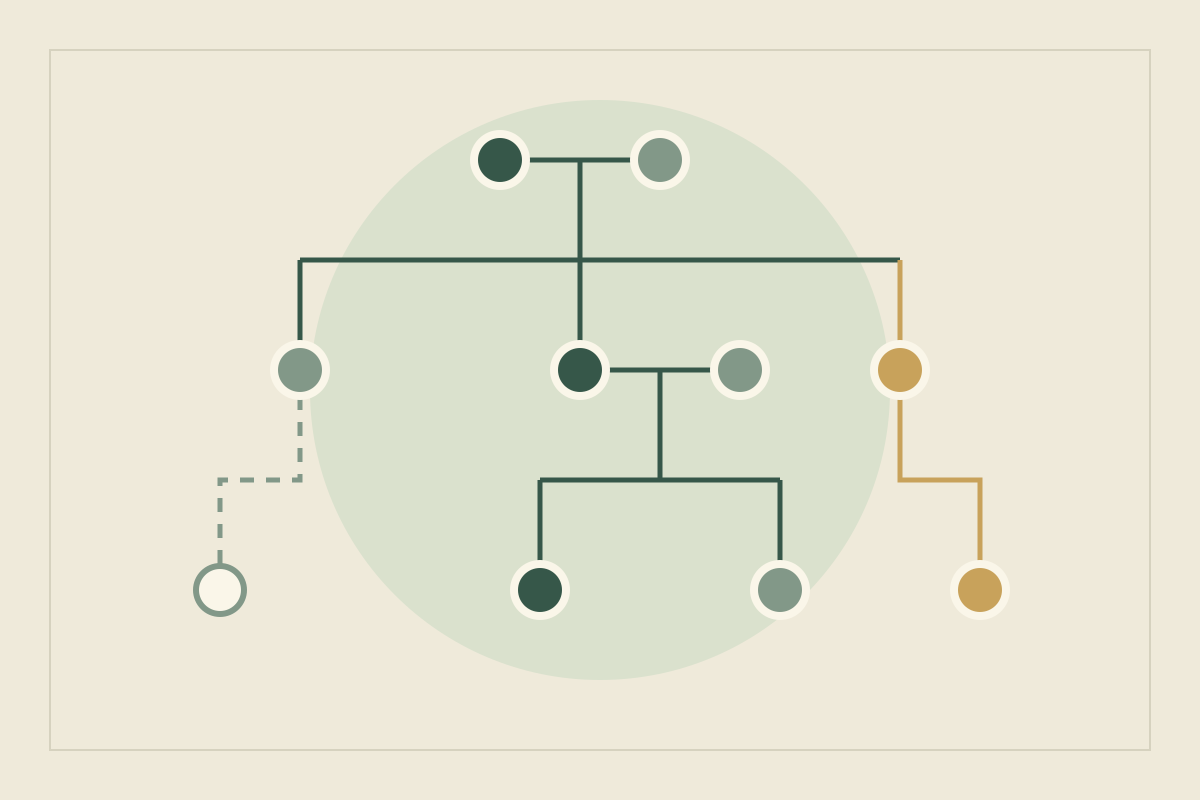
Every character appears as a node in the Family Tree. Drag one onto another to connect them, then click a connection to change its type or delete it. A relationship set on the tree appears on the character’s profile, and one set on the profile appears on the tree (family tree). The relation types are mother, father, child, spouse and sibling. For Sallow Fen, Agathe is mother to Tamsin and Edric, and the two are siblings.
Edric’s real father is the book’s late reveal, so that link stays off the tree until you decide what the wiki will show. For disputed lines and succession, see how to build a family tree for a dynasty.
Timeline events#
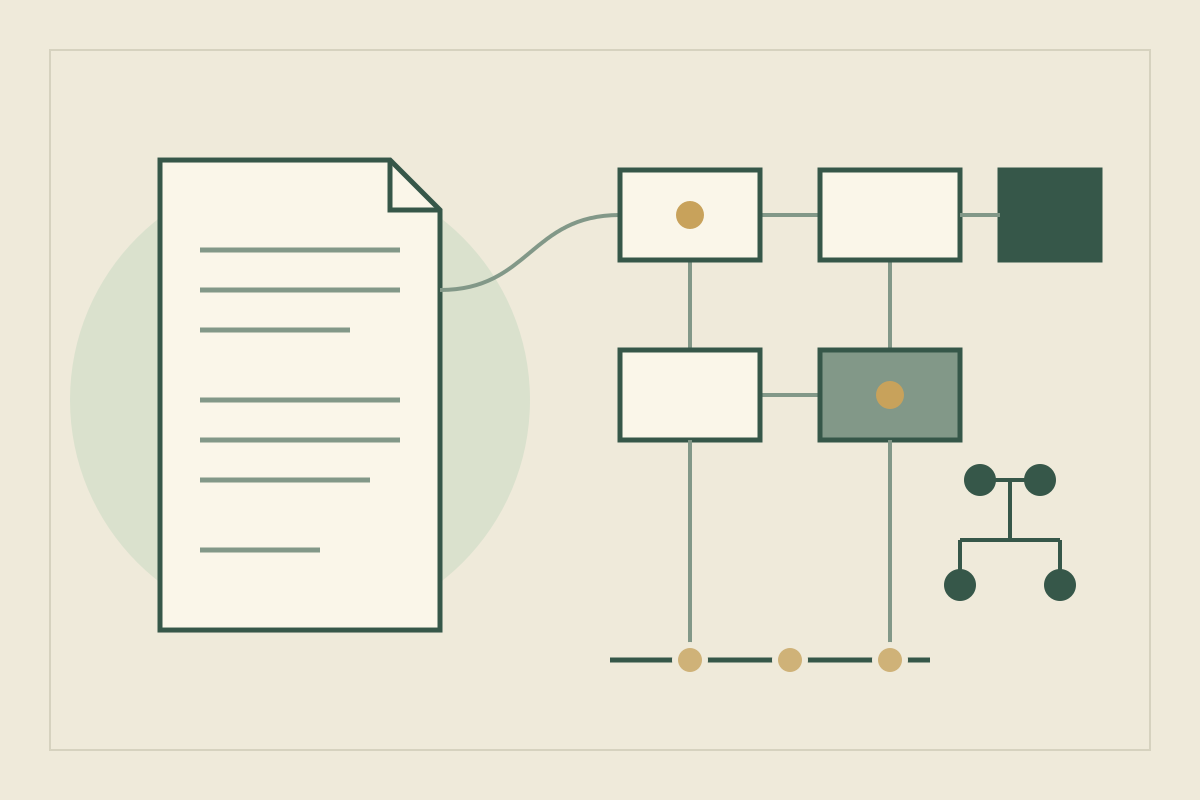
A timeline event takes a title, a date written as free text and a short note, so “Third Flood, spring” works as well as any calendar. The timeline is a single list; drag an event to move it, and mark parallel threads in event titles if you need them (timeline). Add the characters who take part and the location where it happens. Each character’s and location’s page then lists its events in timeline order, and clicking one jumps to it (updates).
Add “The weir fails” with Agathe and Edric as participants and the Weir Gate as its location, and all three pages show it in sequence. Because the dates are free text, the arithmetic, such as Edric’s age that spring, is still yours. The timeline guide covers how to plan that sequence.
Track open questions in notes#
Notes hold whatever isn’t settled. Each note has a type, such as Scene Idea, Character Note or Plot Idea, and a status: Idea, In Progress, Used, To Review or Archived. Mention a character in a note and it appears on that character’s page (story notes, updates). Notes are unlimited on both plans (pricing).
“Does Agathe know who Edric’s father is?” starts as a Plot Idea at Idea. It moves to In Progress while you draft chapter 19, to Used once the scene is on the page, and to To Review if a revision moves it. The statuses turn your notes into a plan for revealing lore without info-dumps.
Keep secrets out of the public wiki#
Any book can become a read-only wiki from Book Settings, free on both plans, at Private, Unlisted or Public visibility. You can add a password (who can see the wiki). You choose which sections appear and can hide single records (wiki details). Notes are never included (wiki). The Timeline can be published and is off by default; turn it on from the section list in Book Settings (updates).
| Material in The Fen Toll | Where it lives | In the wiki? |
|---|---|---|
| Edric’s real father | A note, until chapter 19 is final | Never: notes aren’t shared |
| Who learns about the Ledger, and when | Timeline events, left off the wiki | Only if you turn the Timeline on; it is off by default |
| Captain Hale’s entry | Characters, with no hint of the secret | Only if Characters is shown |
| Family links | The Family Tree, mother and sibling only | Only if you show the tree |
| A record you haven’t settled | Hidden from the wiki | No, while hidden |
The rule that follows: anything readers shouldn’t learn yet goes in a note, because notes are never included, or its record stays hidden. Leave the Timeline off if its events would spoil the book. Before you share the link, open the wiki as a reader would.
Export, and what stays beside the book#
The Export section of Book Settings downloads the whole book as Markdown, a .zip with one readable file per record, or as JSON. Both include notes, the timeline and the connections between records (export FAQ). Take one after each full draft and keep it with your manuscript files. Yazar.io stores entity descriptions, notes and custom field values encrypted with AES-256-GCM (privacy).
Yazar.io focuses on the world behind the story, so the manuscript stays in Word or Google Docs (features). Places live in text and fields; draw a map elsewhere, starting from a difficult journey. One account keeps the records, and readers use the wiki. If you are moving an existing bible in, there is no import, so you retype or paste (offline FAQ). Quick search (Ctrl+K or Cmd+K) works within the open book (updates). The free plan allows 2 books and 15 editable records per entity type in each book; Glossary, Timeline, Notes and Quotes are unlimited. If an account moves back to the free plan, records above the limit stay viewable and exportable but read-only. Yazar Pro is $6.99 a month or $54.99 a year, as confirmed by the Yazar.io team on 21 October 2026; the pricing page shows your local currency, and prices may differ by region.
Set it up for a standalone or a series#
Each book is its own workspace; nothing is shared between books automatically, so records would have to be carried over by hand (how it works). That, together with search staying inside one book, shapes the choice.
| Setting | Standalone | Series |
|---|---|---|
| Yazar.io books | One for the novel | One for the whole series, so search and links reach every volume |
| Field template | Role, first chapter, key relationships | Add the volume to “First appears”, plus a field for what readers know |
| Timeline dates | Free text in the world’s calendar | Start each date with the volume, such as “Book 2, Third Flood” |
| Wiki | Publish after release, or not at all | Hide records whose secrets a later volume reveals |
| Plan | A modest cast may fit the free plan | 15 editable records per section fill quickly; Pro lists records as unlimited |
A series also needs citations, a record of what readers know and fixed update points; keeping a series bible covers those habits in any tool.
Common setup mistakes#
| Mistake | Fix |
|---|---|
| Entering the cast, then designing the template | Try the fields on two or three records first; template changes never reach existing records |
| Leaving every suggested section open | Hide what the story doesn’t use; hiding keeps any records |
| Describing a record without naming it | Use its name or @, or the backlink panel can’t list the mention |
| Putting a reveal in a record the wiki shows | Keep it in a note, or hide the record from the wiki |
| One Yazar.io book per volume of a series | One book for the series, so search and links span it |
| Treating the export as a round trip | It’s a copy for reading and backup; there’s no import |
If you are still comparing tools, the best worldbuilding tools sets Yazar.io beside Obsidian, World Anvil and Campfire by task.
Update, 21 October 2026: Reframed the manuscript as a deliberate split, corrected the wiki (you can add a password; notes stay out; the Timeline can be published and is off by default), and stated encryption and the team-confirmed Pro price.
Sources
- Yazar.io: Features · October 21, 2026
- Yazar.io: Privacy policy · October 21, 2026
- Yazar.io: Plans and limits · October 21, 2026
- Yazar.io: Product updates · October 21, 2026
- Yazar.io: Shareable wiki · October 21, 2026
- Yazar.io FAQ: What can I organize in yazar.io? · October 11, 2026
- Yazar.io FAQ: Can I rename sections to fit my own universe? · October 11, 2026
- Yazar.io FAQ: How does worldbuilding work in yazar.io? · October 11, 2026
- Yazar.io FAQ: Can I export my data? · October 11, 2026
- Yazar.io FAQ: Can I use yazar.io without an internet connection? · October 11, 2026
- Yazar.io: Family tree · October 11, 2026
- Yazar.io: Timeline · October 11, 2026
- Yazar.io: Story notes · October 11, 2026
- Yazar.io: Shareable wiki visibility and sections · October 11, 2026
- Yazar.io: World Anvil vs yazar.io · October 11, 2026
- Yazar.io: Worldbuilding software for game writers · October 11, 2026
- Yazar.io: Who can see my Shareable Wiki? · October 21, 2026