The short answer
Pick the tool by the map you need. Sketch routes on paper first. For a quick world or city map in a browser, consider Inkarnate, whose free plan is limited to 3 maps, 2k exports and personal use. For a hand-drawn look made offline, consider Wonderdraft; for a generated world with states, cultures and religions, the free Azgaar’s Fantasy Map Generator; for battle maps on a virtual tabletop, Dungeondraft. For print, check the export resolution first. This shortlist is based on official documentation, not hands-on testing.
A map maker answers a narrower question than “which tool makes the prettiest map.” You are choosing what the map has to do: settle where the river runs while you draft, give players a world to point at, hand you a continent with nations already on it, stage a fight in a crypt, or survive printing on a book’s endpapers. Each of those jobs favors a different tool, and one of them needs no software at all.
This shortlist is organized by need, not scored. Product details come from each vendor’s official site, documentation or repository, checked on 11 October 2026; we have not tested the tools against each other. Prices are left out because they change, so check current terms before you pay.
For a working sketch: pen and paper or any drawing app#
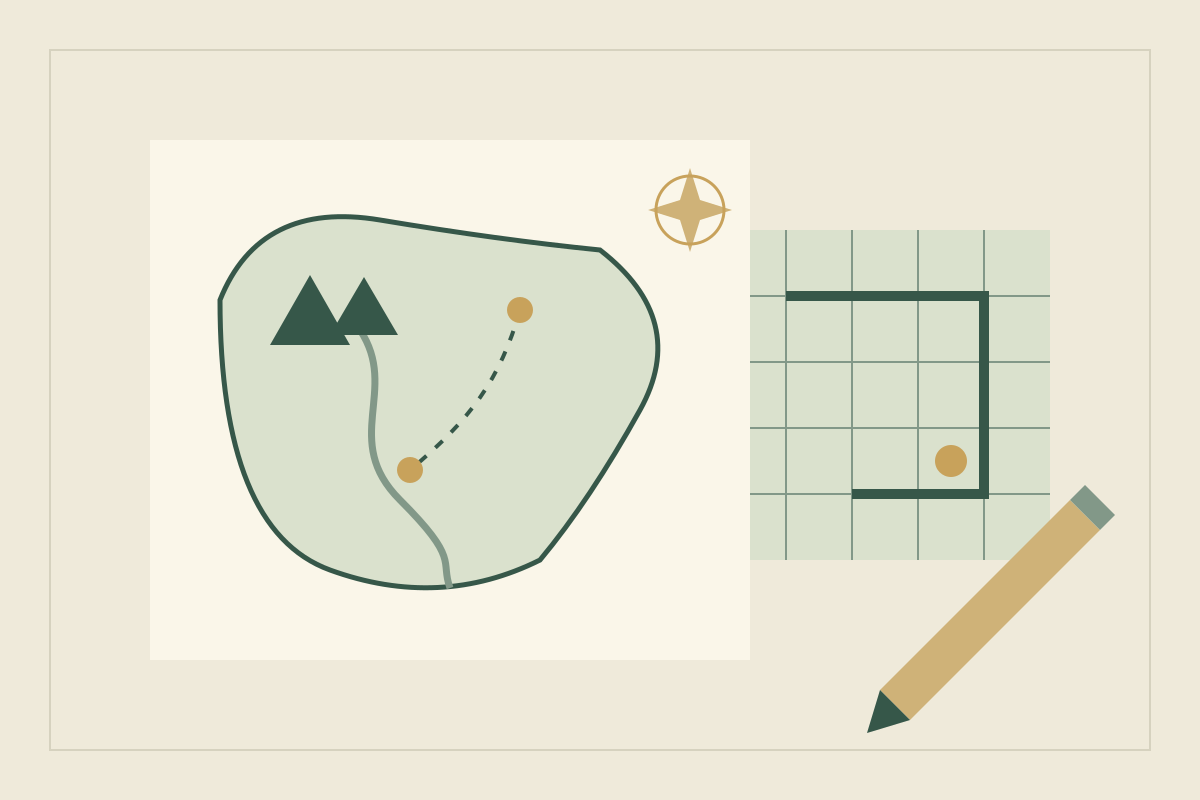
Before you open software, sketch the region your story actually crosses. A pencil and an eraser let you move a mountain range in seconds, which matters while the plot is still deciding where the characters must go. A general drawing app does the same with layers and undo.
The guide to drawing a region around a difficult journey covers this stage. Come back to the tools below when the route works and you know who will see the map.
For a quick world map in a browser: Inkarnate#
Inkarnate is an online map-making platform. Its FAQ lists world and region maps, city and village maps, battlemaps including interiors, and scene and isometric maps. You place ready-made art such as stamps and textures rather than drawing every tree, and the home page says you can use the free version for as long as you want, with no credit card.
The free plan is deliberately small. According to the FAQ, it includes a small selection of the art, up to 3 maps, editing and exporting at up to 2k resolution, and a license for personal use. The Creator plan raises exports to 8k and lets you upload custom art; the Studio plan adds commercial use and 16k exports. You need an internet connection, and the FAQ says Inkarnate cannot currently be used offline. It also says Inkarnate claims no ownership over the maps you make.
For a hand-drawn look on your own computer: Wonderdraft#
Wonderdraft is a desktop application for world maps. Its site describes brushing landmasses whose coastlines are automatically beautified, generating landmasses of different types, drawing rivers and roads, painting groups of tree and mountain symbols, and choosing from curated map themes and label presets. It lists pen support, including Wacom tablets, so you can draw a coast by hand.
It is sold as a one-time purchase with no subscription, needs no internet connection and is DRM-free. Map dimensions run from 512 to 8,192 pixels, and the page says there is no additional commercial licensing. The listed minimum operating system is 64-bit Windows 10 or Ubuntu. If you work on a Mac, check the site for current platform support.
For a generated world with history: Azgaar’s Fantasy Map Generator#
Azgaar’s Fantasy Map Generator is a free web application, according to its GitHub repository, and a desktop version runs on Windows, macOS and Linux. It generates a map the moment it opens, then hands you the controls. The Quick Start Tutorial lists settings for the number of cultures, states, provinces, settlements (it calls them burgs) and religions, each with its own editor. A Lore Editor sets the current year and era, which the generator uses to date state history and battle reports.
That makes it a different kind of tool. You get political borders, cultures and religions as a draft to argue with, not a picture to decorate. Keep the borders that create pressure for your plot, and rewrite the rest so they fit your own timeline.
For battle maps: Dungeondraft#
Dungeondraft comes from Megasploot, the developer of Wonderdraft, and each site points to the other: Wonderdraft for world maps, Dungeondraft for encounter maps. Its feature list includes a tiling system, object scattering, landscape painting, built-in lighting and a built-in dungeon and cave generator. It offers a universal VTT export, with Foundry VTT and Roll20 reached through modules and several other virtual tabletops, such as Encounter+ and MapTool, listed as native.
Like Wonderdraft, it is a one-time purchase, works without the internet and lists 64-bit Windows 10 or Ubuntu as the minimum operating system. Its FAQ says you may publish or sell maps that are your original creation, with no additional fees or royalties.
For print: check the export ceiling first#
Print size is the pixel count divided by the resolution your printer asks for. At 300 pixels per inch, the full width of an A4 page (8.27 inches) needs about 2,480 pixels, so a 2k export falls short. Wonderdraft’s 8,192-pixel maximum covers roughly 27 inches at that density.
Azgaar’s Q&A lists an .svg export of the full map as a scalable vector image, PNG and JPEG exports of the visible area at up to 8× resolution, and a tiled PNG export for giant images. Dungeondraft lists a printer-friendly export filter, and its FAQ mentions an export PPI setting. Before you commit to a cover or endpaper map, export a test at final size and read the labels at 100% zoom.
Test every tool on the same small region#
Use one invented region for every candidate, so the comparison measures the tool rather than your mood that day. Call it the Saltmarch: a ragged coast, a river delta with two rival ports, a single mountain pass, and a ruined watchtower on the pass where the first scene begins.
- Draw. Make the coastline, the river and the pass. In Wonderdraft you brush the coast; in Azgaar’s generator you paint or regenerate the terrain; in Inkarnate you place textures and stamps. Notice how long it takes to move the pass a day’s walk to the north.
- Name. Label the ports, the pass and the tower. Try a small naming pattern and check whether the labels stay readable when you zoom out.
- Zoom. Turn the watchtower into a battle map. Dungeondraft is built for this, and Inkarnate also lists battlemaps; a world-map tool stops being the right one here.
- Leave. Export the region at the size you need, open the file outside the tool, and confirm that you also kept an editable copy.
Record where you stalled. A tool that makes step 1 a pleasure and step 4 awkward will cost you later.
Compare by the map you need#
| The map you need | Start by evaluating | Check before committing |
|---|---|---|
| A working draft of routes and borders | Pen and paper or a drawing app | Can you redraw it quickly when the plot moves? |
| A quick world or region map in a browser | Inkarnate | Free-plan limits: 3 maps, 2k exports, personal use only |
| A hand-drawn look, made offline | Wonderdraft | Supported systems: 64-bit Windows or Ubuntu |
| A generated world with states, cultures and religions | Azgaar’s Fantasy Map Generator | Where your .map file is saved and backed up |
| Battle maps for a virtual tabletop | Dungeondraft | Your virtual tabletop’s import route |
| A large print or book map | A tool whose export reaches your print size | Pixels needed at your printer’s resolution |
Common mistakes when choosing a map maker#
- Decorating before the route works. A beautiful coastline cannot tell you whether the messenger crosses the river in a day. Sketch the journey first.
- Treating generated history as canon. A generator’s states and religions are a prompt. When they contradict your story, the story wins.
- Expecting one tool for every scale. The same developer sells separate tools for world maps and encounter maps. Treat them as different jobs.
- Reading “8K” as a print promise. Check the export limit of the plan you are actually on, and the size you will print at.
- Putting a personal-use map on a book cover. Inkarnate reserves commercial use for its Studio plan. Wonderdraft and Dungeondraft list no additional commercial licensing, and Azgaar’s Q&A says you own the maps you make and may sell them. Read the current terms before you publish.
What to check before committing#
- Export. Inkarnate’s FAQ says all maps can be exported as images. Azgaar’s generator exports SVG, PNG, JPEG, tiles, GeoJSON and JSON. Dungeondraft adds a universal VTT export. Whatever the tool, keep an editable project file as well as the picture.
- Offline use. Inkarnate needs a connection. Wonderdraft and Dungeondraft need no internet. Azgaar’s desktop app works offline, though its Q&A notes that fonts and textures loaded from external URLs still need a connection.
- Ownership of files. Inkarnate claims no ownership of your maps, but they live in your online account, so download what you need. Azgaar’s tutorial warns that the project cannot restore a lost map and that browser storage can be purged, so keep the .map file on your own machine with copies elsewhere. Wonderdraft and Dungeondraft run on your computer, which puts backups in your hands.
- Devices. Azgaar’s Q&A says mobile devices are, in general, not supported. Check each tool’s supported operating systems on its official site, and try it on the machine you will use.
Once the map exists, the Obsidian and World Anvil comparison covers two ways to attach notes to a map image, and the broader tool shortlist covers the rest of a world’s notes.
Sources
- Inkarnate: Create fantasy maps online · October 11, 2026
- Inkarnate: Frequently asked questions · October 11, 2026
- Wonderdraft: Features and requirements · October 11, 2026
- Dungeondraft: Features, requirements and FAQ · October 11, 2026
- Azgaar’s Fantasy Map Generator: GitHub repository · October 11, 2026
- Azgaar’s Fantasy Map Generator wiki: Quick Start Tutorial · October 11, 2026
- Azgaar’s Fantasy Map Generator wiki: Q&A · October 11, 2026